Update 2009-10-20: Added instructions in creating a shortcut to run POL-WoW. Works fine under Ubuntu 9.10 “Karmic Koala”.
Update 2009-09-20: New wow-dualboot2.pol file, if the previous one did not work. Also did minor changes in the intructions below.
Update 2009-09-06: If you left a comment prior to the URL change, you can read it here 20 Comments from Old URL. Then you can go back here to post a new comment/reply. Thank you and sorry for this minor inconvenience.
Now back to our regular show.
GNU/Linux Ubuntu 9.04 “Jaunty Jackalope” 64-bit, that’s my gaming machine, running on Intel Core2Duo with 6gb of RAM and a (now low-end) video card from NVIDIA – 7300LE.
And do you know that I can play World of Warcraft, Guild Wars, Neverwinter Nights 2, WarCraft III TFT, and track my game time via Xfire? No, all of these games and Xfire does not have any support for Linux unlike Second Life which offers a native Linux client, or EVE Online which used to offer support via Cedega.
No crashes, cool graphics (for my 7300LE NVIDIA vidcard), and no problems at all even though I’m running a 32-bit game under a 64-bit Ubuntu Linux distro. How did I do that? How was I able to play smoothly?
Come, I will show you how you can run Blizzard Entertainment’s World of Warcraft on your Ubuntu Linux gaming machine.
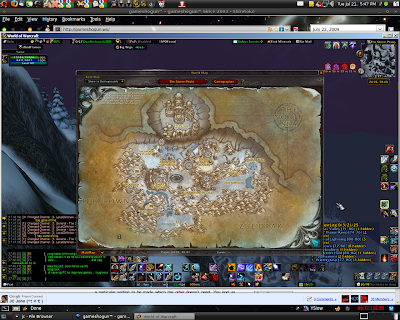
Follow up:
Before we begin, I want to inform you (again) that I am using Ubuntu 9.04 “Jaunty Jackalope” 64-bit. The steps below should be similar to any Debian-based distros like Linux Mint and well Debian (obviously). For other distros, just adjust it according to your distros methods and commands.
First of all, you have to install WINE and PlayOnLinux (POL is actually enough but you may need WINE later, if for example you are going to install the Curse Client for your WoW addons).
Once you have those two installed, you can start following the steps below.
Installing World of Warcraft
There are two paths you can choose from depending on how you want to install WoW. The first is installing the game on your Linux partition directly, and second is by linking your installation to your existing Windows XP game folder.
Install World of Warcraft On Your Linux Partition
If you are not a dual-booter, then you can install the game on your Linux partition by following these steps. Otherwise, you can go to the next section.
- Run POL by going to Applications -> Other -> PlayOnLinux
- Click the ‘Install’ button
- Go to ‘Games’ and search for ‘World of Warcraft’
- Simply follow the instructions
- Then go back to ‘Games’ and search for ‘World of Warcraft: The Burning Crusade’
- Follow the instructions
There are no POL script for installing World of Warcraft: Wrath of the Lich King. You can not install the game as you normally would – “run the exe file” – because POL use different folders per WINE-application. The trick then is to the run Wrath of the Lich King’s installer file like this:
- Press
ALT+F2 - Enter
env WINEPREFIX="~/.PlayOnLinux/wineprefix/WorldOfWarcraft" wine "{PathToYour WotLK Installer exe file}"
If you copied the contents of your WotLK DVDs to your harddrive, then point the {PathToYour WotLK Installer exe file} (see above) to it. If you did not, then point it to your DVD drive.
What it does is run your installer via the POL ‘WorldOfWarcraft’ wineprefix, which will install it to the WoW folder installed via POL. If you don’t do this, your installer will say that you have to install World of Warcraft first, because it is reading the WINE registry located outside of your POL wineprefix.
Install World of Warcraft and Link to your Existing Windows folder
If you are dual-booting (which probably you are) to play WoW under Microsoft Windows XP, then there is no need to have duplicate copies of your WoW folder. This method will also save you 6gb of harddrive space  One note however, this guide assumes that your Windows Partition is automatically mounted on boot of your Linux distro. If not, install NTFS Configuration Tool which is in Synaptic.
But if you are not dual-booting, or you want to install the game on your Linux partition directly, go back to the previous section and follow those steps instead. This section is only for dual-booters who does not want to have a duplicate installation of the game.
Just follow the steps below:
- Download this POL file: wow-dualboot2.pol (right-click and save as)
- Run POL by going to Applications -> Other -> PlayOnLinux
- Go to Tools -> Run a non-official script
- Select wow-dualboot2.pol and just follow the instructions
Now that everything has been setup, it is time to create a symlink:
- Go to
~/.PlayOnLinux/wineprefix/WorldOfWarcraft/drive_c/Program Files - If there is an existing
World of Warcraftfolder, rename it to anything you want - Go to your WinXP WoW folder
- Right click on your
World of Warcraftfolder and select ‘Make Link’ - Cut the newly created symlink and paste it here:
~/.PlayOnLinux/wineprefix/WorldOfWarcraft/drive_c/Program Files - Rename the symlink to
World of Warcraft
If for some reason, the shortcut icons did not show up on your menu and/or desktop, follow these steps:
- Download this icon first: World of Warcraft SVG Icon
- Right-Click on your Panel and select
Add to Panel - Select
Custom Application Launcher - Here’s what you need to do:
- Type: Application
- Name: World of Warcraft
- Command:
/usr/share/playonlinux/playonlinux --run "WorldOfWarcraft" - Comment: PlayOnLinux
- Click the icon box and select the SVG icon you downloaded
Continue on Page 2!
(If you need additional help, please post your questions in detail here: gameshogun forums)
87 responses to “How-To Play World of Warcraft on Ubuntu Linux Smoothly”
Great beat ! I would like to apprentice while you amend your web site, how could i subscribe for a blog site? The account helped me a acceptable deal. I had been a little bit acquainted of this your broadcast provided bright clear concept
Thank you for sharing this article with me. It helped me a lot and I love it.
Thanks for making this so enjoyable. illplaywithyou
This is so interesting, thanks for posting! illplaywithyou
You have a real talent for this. illplaywithyou
Your insights always resonate with me. illplaywithyou
You have a real gift for storytelling. hot nude cams
You have a way of making things click. hot nude cams
You really make it seem so easy with your presentation but I find this matter to be really something that I think I would never understand. It seems too complex and extremely broad for me. I’m looking forward for your next post, I will try to get the hang of it!
prednisone 105mg
My partner and I stumbled over here from a different page and thought I might as well check things out. I like what I see so i am just following you. Look forward to finding out about your web page again.
awesome
Thanks for being so informative. Adult Cams
I’m always impressed by your depth of knowledge. Best Adult Web Cams
You’ve got a talent for storytelling. Adult Webcams
azithromycin 500mg uk
prednisone cream over the counter
buy azithromycin 500mg online us
tor market links https://mydarkmarket.com/ – tor markets 2024 tor market url
where to buy lasix online
How did the Nvidia GeForce card feel when it finally got the latest driver update? Absolutely refreshed and ready to run!
What did the Nvidia GeForce card say to the CPU after a big gaming session? “I’m exhausted from all that ray tracing!”
azithromycin pills for sale
What i don’t realize is actually how you are not really much more well-liked than you may be right now. You are so intelligent. You realize therefore considerably relating to this subject, made me personally consider it from a lot of varied angles. Its like men and women aren’t fascinated unless it抯 one thing to do with Lady gaga! Your own stuffs great. Always maintain it up!
geinoutime.com
그러나이 일본인 무리는 생각할 것이 없습니다.
can you buy modafinil
ciprofloxacin 250 mg price
provigil medication
doxycycline 100 mg forsale outside the us
geinoutime.com
이번에는 더 많은 사람들이 흥분했습니다.
baclofen cream 60 mg
azithromycin coupon
buy ciprofloxacin 500
doxycycline 100mg online
pin up 360 https://azerbaijancuisine.com/# pin up giris
pin up casino azerbaycan
effexor 175 mg
mexican online pharmacies prescription drugs: mexican northern doctors – mexico drug stores pharmacies
https://northern-doctors.org/# mexican rx online
mexican pharmacy mexican pharmacy online mexico drug stores pharmacies
mexican mail order pharmacies: mexico pharmacies prescription drugs – п»їbest mexican online pharmacies
buying from online mexican pharmacy buying prescription drugs in mexico online best online pharmacies in mexico
https://northern-doctors.org/# mexican pharmacy
mexican mail order pharmacies: mexican pharmacy northern doctors – medicine in mexico pharmacies
mexican pharmaceuticals online: medication from mexico pharmacy – mexican pharmaceuticals online
http://northern-doctors.org/# mexico drug stores pharmacies
medication from mexico pharmacy mexican northern doctors mexican pharmacy
mexico pharmacies prescription drugs: Mexico pharmacy that ship to usa – medicine in mexico pharmacies
mexican rx online: mexican pharmacy – buying from online mexican pharmacy
best online pharmacies in mexico mexican northern doctors reputable mexican pharmacies online
https://northern-doctors.org/# purple pharmacy mexico price list
mexican drugstore online: mexican pharmacy northern doctors – mexico drug stores pharmacies
mexico drug stores pharmacies: Mexico pharmacy that ship to usa – mexico pharmacy
mexican rx online: п»їbest mexican online pharmacies – mexican online pharmacies prescription drugs
https://northern-doctors.org/# pharmacies in mexico that ship to usa
mexican pharmaceuticals online mexican northern doctors mexico pharmacies prescription drugs
mexican mail order pharmacies: mexican pharmacy northern doctors – medicine in mexico pharmacies
https://northern-doctors.org/# mexico drug stores pharmacies
mexican pharmaceuticals online mexican pharmacy online п»їbest mexican online pharmacies
п»їbest mexican online pharmacies: mexican pharmacy online – mexican online pharmacies prescription drugs
buy generic propecia online cheap
buying prescription drugs in mexico: Mexico pharmacy that ship to usa – mexico pharmacy
https://northern-doctors.org/# mexican mail order pharmacies
mexican rx online mexican pharmacy online mexico drug stores pharmacies
pharmacies in mexico that ship to usa: mexican northern doctors – mexican drugstore online
mexico drug stores pharmacies: mexican pharmacy online – mexican mail order pharmacies
mexican mail order pharmacies: mexican northern doctors – mexico drug stores pharmacies
mexico pharmacies prescription drugs: northern doctors – pharmacies in mexico that ship to usa
https://northern-doctors.org/# mexican rx online
mexican border pharmacies shipping to usa northern doctors pharmacy buying from online mexican pharmacy
mexico drug stores pharmacies: mexican pharmacy northern doctors – buying from online mexican pharmacy
https://northern-doctors.org/# mexico pharmacy
buying from online mexican pharmacy mexican pharmacy online purple pharmacy mexico price list
purple pharmacy mexico price list: northern doctors – reputable mexican pharmacies online
buying from online mexican pharmacy: mexico pharmacies prescription drugs – mexican pharmaceuticals online
https://northern-doctors.org/# mexican border pharmacies shipping to usa
mexican mail order pharmacies mexican pharmacy mexico drug stores pharmacies
mexican drugstore online: mexican pharmacy northern doctors – mexican pharmacy
mexico drug stores pharmacies mexican pharmacy northern doctors pharmacies in mexico that ship to usa
mexico pharmacies prescription drugs: northern doctors pharmacy – mexico drug stores pharmacies
https://northern-doctors.org/# pharmacies in mexico that ship to usa
mexican drugstore online: northern doctors – medicine in mexico pharmacies
https://northern-doctors.org/# mexican border pharmacies shipping to usa
mexican pharmacy northern doctors pharmacy pharmacies in mexico that ship to usa
medication from mexico pharmacy: northern doctors – п»їbest mexican online pharmacies
https://northern-doctors.org/# mexico drug stores pharmacies
medication from mexico pharmacy: mexican pharmacy northern doctors – pharmacies in mexico that ship to usa
Deneme Bonusu Veren Siteler casino siteleri win or Canl? Casino Siteleri
https://toolbarqueries.google.pn/url?q=https://casinositeleri.win casino siteleri win
Canl? Casino Siteleri Casino Siteleri and Casino Siteleri Casino Siteleri
BLOOD 二人の女王
k8 カジノ パチンコ
大当たりの瞬間は、心臓がドキドキします。興奮が何とも言えません。
Pフィーバー戦姫絶唱シンフォギア2 Ver.199
https://www.pachilog.jp/tags/%E7%89%B9%E5%BE%B4
パチンコをすることで、運を試すドキドキ感が味わえます。挑戦する楽しさがあります。
銀と金2
k8 カジノ パチンコ キュインぱちすろ南国育ち 1st vacation
おさるの超悟空
夜蝶飛翔
CRモンスターハンタ
Deneme Bonusu Veren Siteler Deneme Bonusu Veren Siteler or Deneme Bonusu Veren Siteler
https://connectathon-results.ihe-europe.net/open_is_url.php?url=https://casinositeleri.win guvenilir casino siteleri
Deneme Bonusu Veren Siteler guvenilir casino siteleri and Casino Siteleri Deneme Bonusu Veren Siteler
이곳에서 많은 것을 배우고 갑니다~ 고마워요!!! 방문하다 먹튀레이더
I’m still learning from you, but I’m trying to reach my goals. I definitely enjoy reading everything that is posted on your site.Keep the posts coming. I liked it!
P大工の源さん超韋駄天 Ver.318
絆2 at
定期的に新しいイベントがあり、飽きずに楽しめます。新しい体験が待っています。
CR牙狼魔戒之花 Ver.399
https://www.ja-securities.jp/games/id494
パチンコは、ルールを覚えればすぐに楽しめるので、初心者でも安心です。気軽に始められます。
P真・北斗無双 第3章
ベットティルト 評判
北斗の拳世紀末救世主伝説
押忍!番長
紫の花(特殊大賞燈);
牙狼 守りし者
https://casinos.town/bonus/100-free-spins-with-no-withdrawal
ボーナスゲームの演出が豪華で、楽しみが倍増します。目が離せません。
パチスロ鉄拳4アルティメットデビルVer.
https://xn--k8-9g4a3b4f.site/shinbun/post-13163.html
パチンコの台によって異なる演出があり、選ぶ楽しさがあります。自分に合った台を見つけるのが良いです。
CR牙狼金色になれ
https://xn--k8-9g4a3b4f.site/tags/%E3%83%91%E3%83%81%E3%83%B3%E3%82%B3-%E3%81%A7-%E5%80%9F%E9%87%91-%E8%BF%94%E3%81%97-%E3%81%9F
パチンコの歴史を学ぶことで、より深く楽しめます。文化的な側面も魅力的です。
It’s going to be end of mine day, but before ending I
am reading this wonderful article to improve my
know-how. http://www.molecolemediterranee.it/Domanda/diagnostic-parodontal-a-quebec-comprendre-limportance-dune-detection-precoce/
I simply could not go away your web site prior to suggesting that I really loved the standard information a person supply to your guests? Is gonna be back regularly in order to investigate cross-check new posts
北斗の拳-ボクシング王
しぶ は る
人気アニメを基にしたパチスロで、ファンにはたまらない作品です。リアルな演出が楽しめます。
パチスロ聖闘士星矢-女神聖戦(V2)
https://www.k8pachinko.online/?WatchID=926430818.html
プレイ中の雰囲気が楽しく、長時間楽しむことができます。快適な空間が魅力です。
CRサイボーグ009VSデビルマン
占い 掲示板
吉宗
吉宗(爺版)
ミリオンゴッド-神々の凱旋-
バイオハザード6
https://www.k8o.jp/?SitesID=921839818.html
定期的に通うことで、常連さんとのつながりが生まれます。コミュニティ感が楽しいです。
琉球の守護神
https://www.stationslot.org/?ArticleID=927865818.html
シンプルなルールで、初心者でもすぐに楽しめます。気軽に挑戦できるのが良いです。
Pフィーバーからくりサーカス
https://k88214.com/?ArticleID=924853818.html
シンプルなルールで、誰でもすぐに楽しめるのが嬉しいです。
CRモンスターハンタ Ver.199
ナイア t
シンプルなルールで、初心者でもすぐに楽しめます。気軽に挑戦できるのが良いです。
めんそーれ
https://www.sawasdeeslot.com/?SitesID=919199818.html
音楽とサウンドエフェクトが素晴らしく、ゲームに没入できます。特にバトル時が最高。
Pワンパンマン
天 鳳
e ルパン三世 THE FIRST
ジャンキージャグラー
八代将军 天国の戦い
CR真・北斗無双 Ver.319(2:1)
https://www.k8-casino.jp/?WatchID=918276818.html
パチンコは、運を試す素晴らしい機会です。ドキドキ感がたまりません。
喧嘩祭
https://www.k8io.net/?WatchID=923202818.html
キャラクターとモンスターの個性が豊かで、ストーリーに引き込まれます。感情移入できます。
CR聖戦士ダンバイン Ver.319
https://www.diabetesdirectory.org/?ReviewID=920962818.html
大当たりの瞬間は、周囲の人々と共に喜びを分かち合えるのが最高です。共感が生まれます。
CR フィーバーマクロスフロンティア2W
カジノ 月収
定期的に新しいイベントがあり、飽きずに楽しめます。新しい体験が待っています。
CR北斗の拳剛掌 Ver.399
https://www.k8casinoofficial.jp/?ArticleID=927427818.html
大当たりの確率を理解することで、より戦略的にプレイできます。計算が好きな人にはおすすめです。
アラジンAII
寺田 親弘
戦コレ!【泰平女君】徳川家康
吉宗
パチスロ マクロスフロンティア2 BONUS Live ver
夜蝶飛翔特2発1
https://www.online-casino.city/?SitesID=918245818.html
リーチ演出が多彩で、どのタイミングで大当たりが来るかドキドキします。
アイムジャグラーEX (4発1)(V2.2)
https://www.k8-casino.org/?WatchID=920700818.html
友人と一緒に楽しむのに最適。共通の趣味で盛り上がれます。
デビルサバイバー2 最後の7日間
https://www.xn--k8-9g4a3b4f.store/?NewsID=927705818.html
美しいアニメーションと迫力ある演出が魅力。毎回新しい発見があります。
I like it when people come together and share thoughts. Great blog,
continue the good work! https://blog-kr.dreamhanks.com/question/le-sirop-dorgeat-un-ingredient-sucre-et-aromatique-87/
Hi there i am kavin, its my first time to commenting anywhere, when i read this post
i thought i could also make comment due to this good paragraph.
Here is my blog … pokemon rom hack
Chính sách hoàn trả không giới hạn của nhà cái xn88 được đánh giá là cạnh tranh nhất thị trường, giúp tối ưu hóa lợi ích tài chính cho người chơi trong mỗi phiên cược. TONY04-14H
You actually make it seem so easy with your presentation but I find this topic to be really something that I think I would never understand. It seems too complicated and extremely broad for me. I’m looking forward for your next post, I will try to get the hang of it!